A workspace beside every video
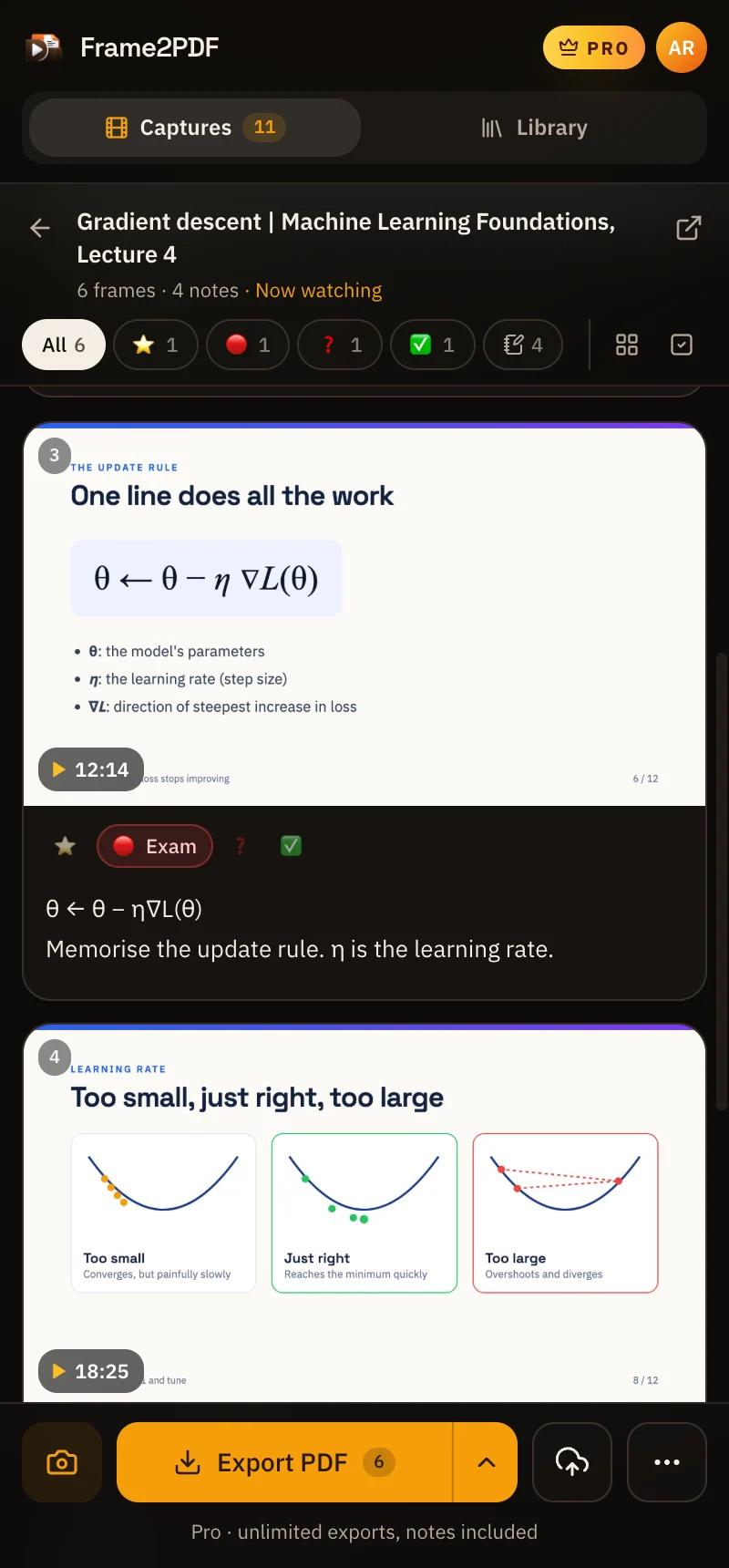
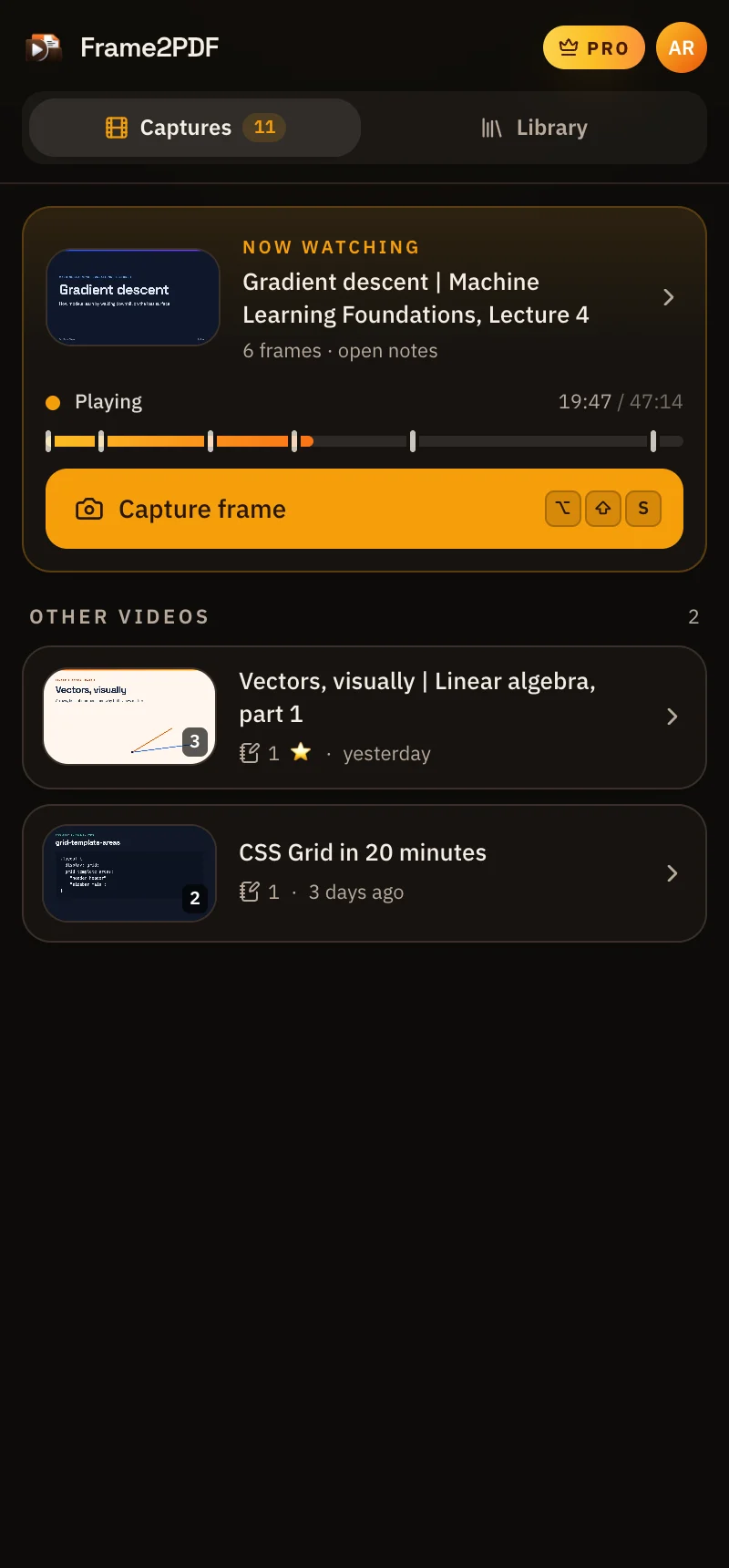
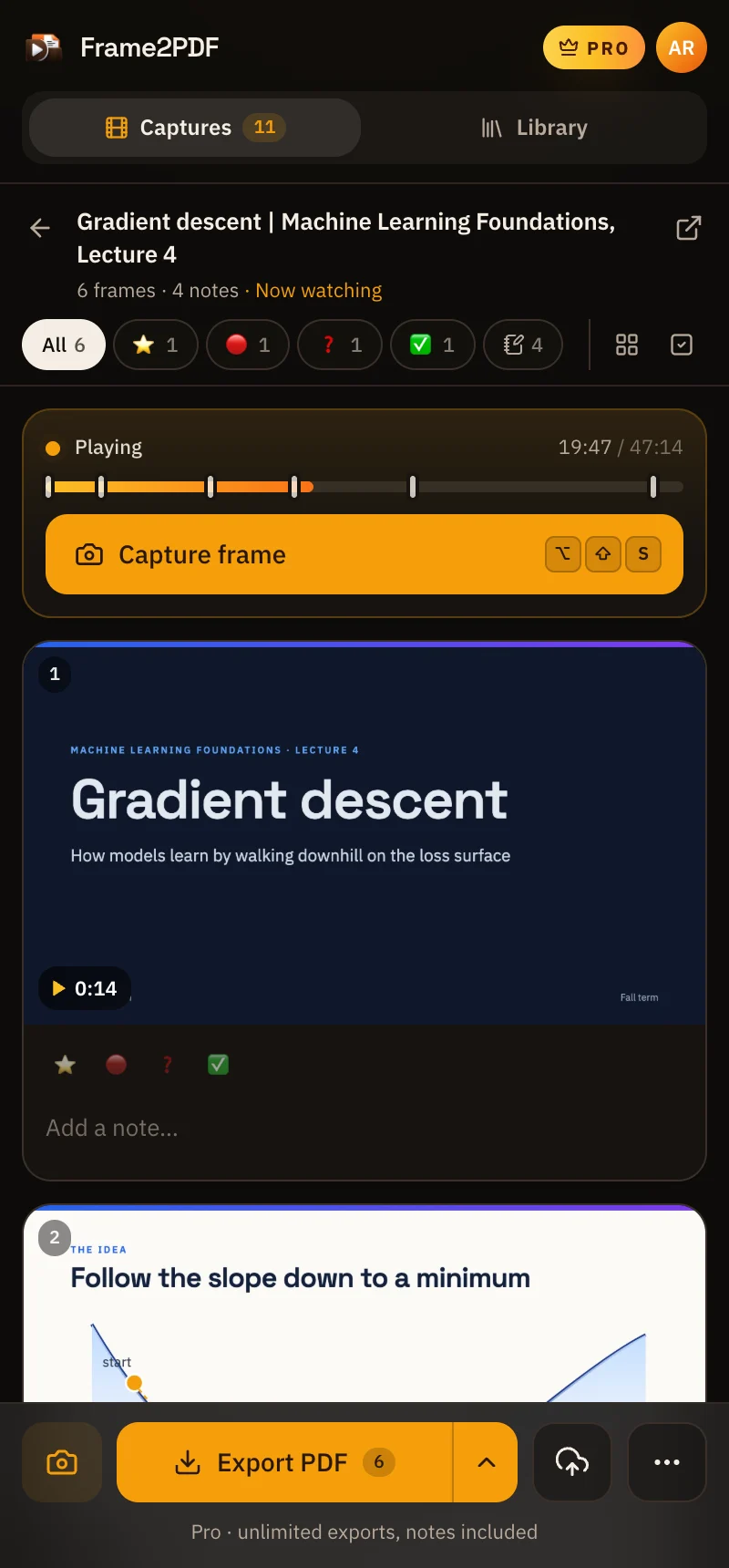
A side panel opens next to YouTube and follows the video you are watching. Your frames appear in it the moment you capture them, so you never pause to switch apps.
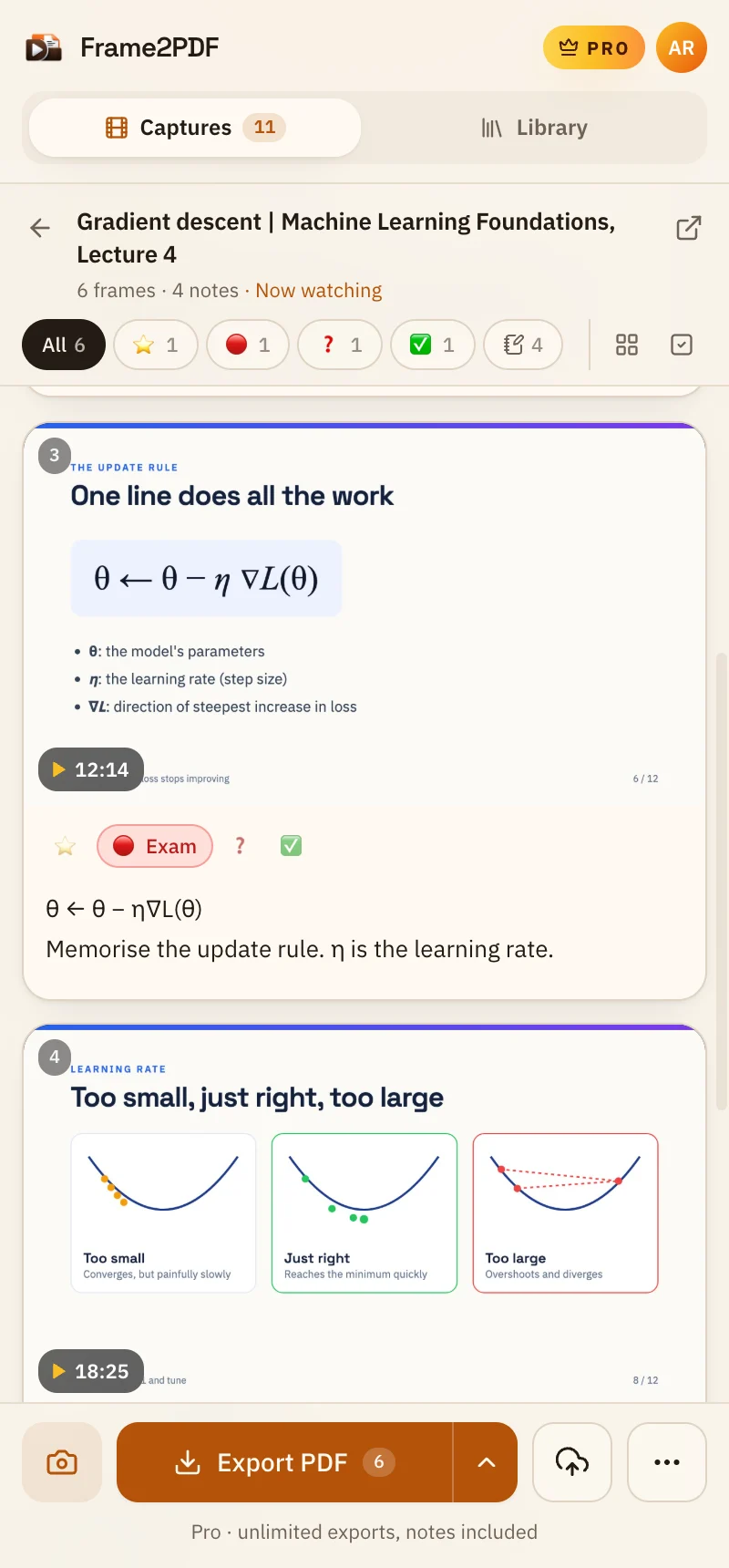
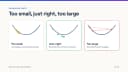
Capture the frames that matter, write a note under each one in a side panel beside the video, and export to PDF, Notion or Obsidian, with every frame linked back to its moment.
Gradient descent | Machine Learning Foundations, Lecture 4
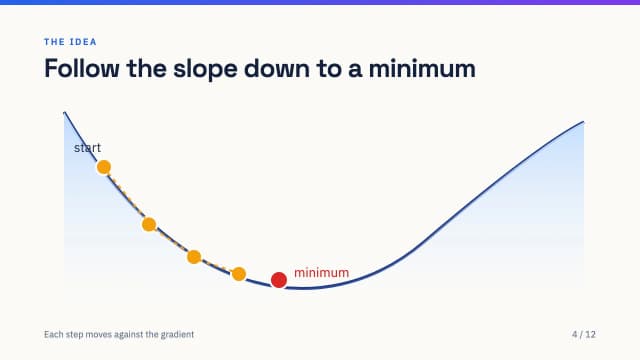 4:08
4:08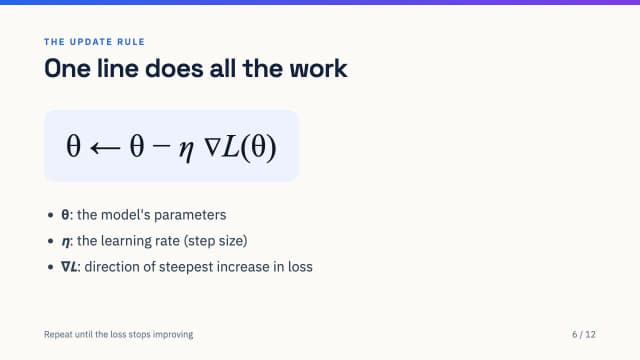 12:14
12:14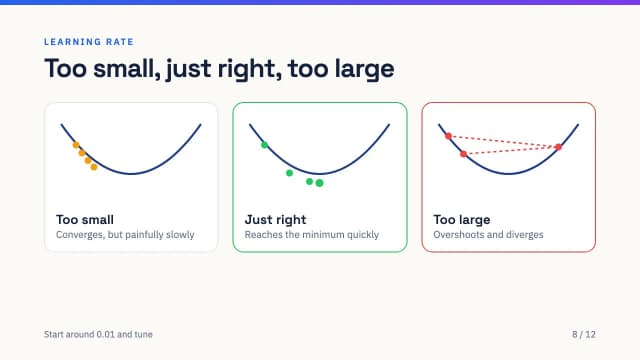 18:25
18:25
Capture from YouTube. Take your notes anywhere.
Features
Frame2PDF sits next to YouTube, keeps up while you watch, and turns a long video into notes you can search, revise and share.
A side panel opens next to YouTube and follows the video you are watching. Your frames appear in it the moment you capture them, so you never pause to switch apps.
Type a note under any frame while the video plays, and label it Important, Exam, Revisit or Understood. Filter by label later to revise just what matters.
Every frame keeps its timestamp. Click it in the panel to jump the video there, or in your PDF and notes to open YouTube at that second.
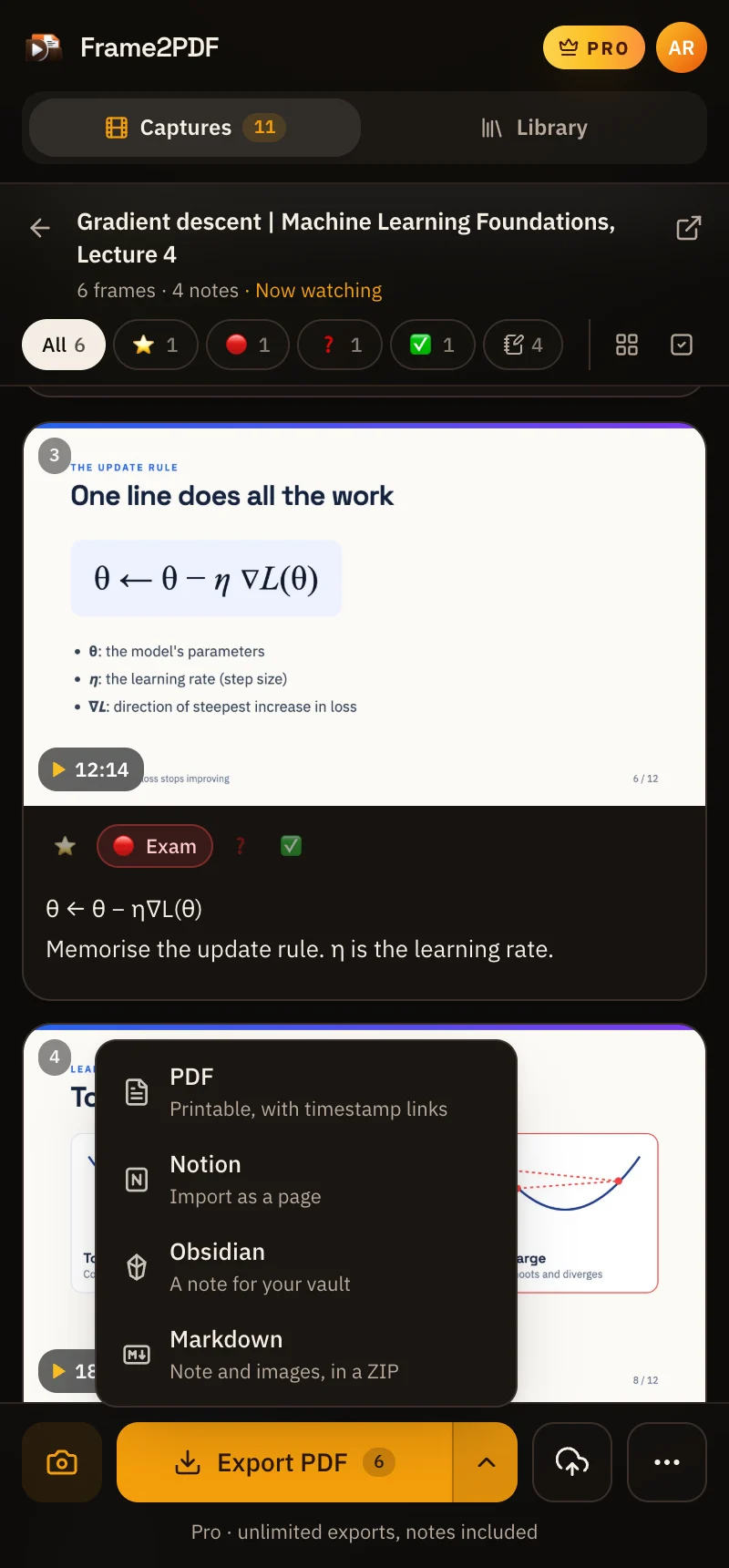
Download a printable PDF with each note under its frame, or a Markdown note with images that imports into Notion and drops straight into an Obsidian vault.
Press Alt+Shift+S on any YouTube tab, click the camera in the player, or use the panel's Capture button. Works on regular videos and Shorts, and skips ads and duplicate frames.
Captures and notes are stored in your browser, not on our servers, until you choose to export or save them to your library.
On Pro, save PDFs and their notes to a private library you can open on any device, organise into notebooks, and share with a link when you choose.
Each PDF stays private until you create a share link.
How it works
No new app to learn. Frame2PDF opens beside YouTube and stays out of the way until you need it.
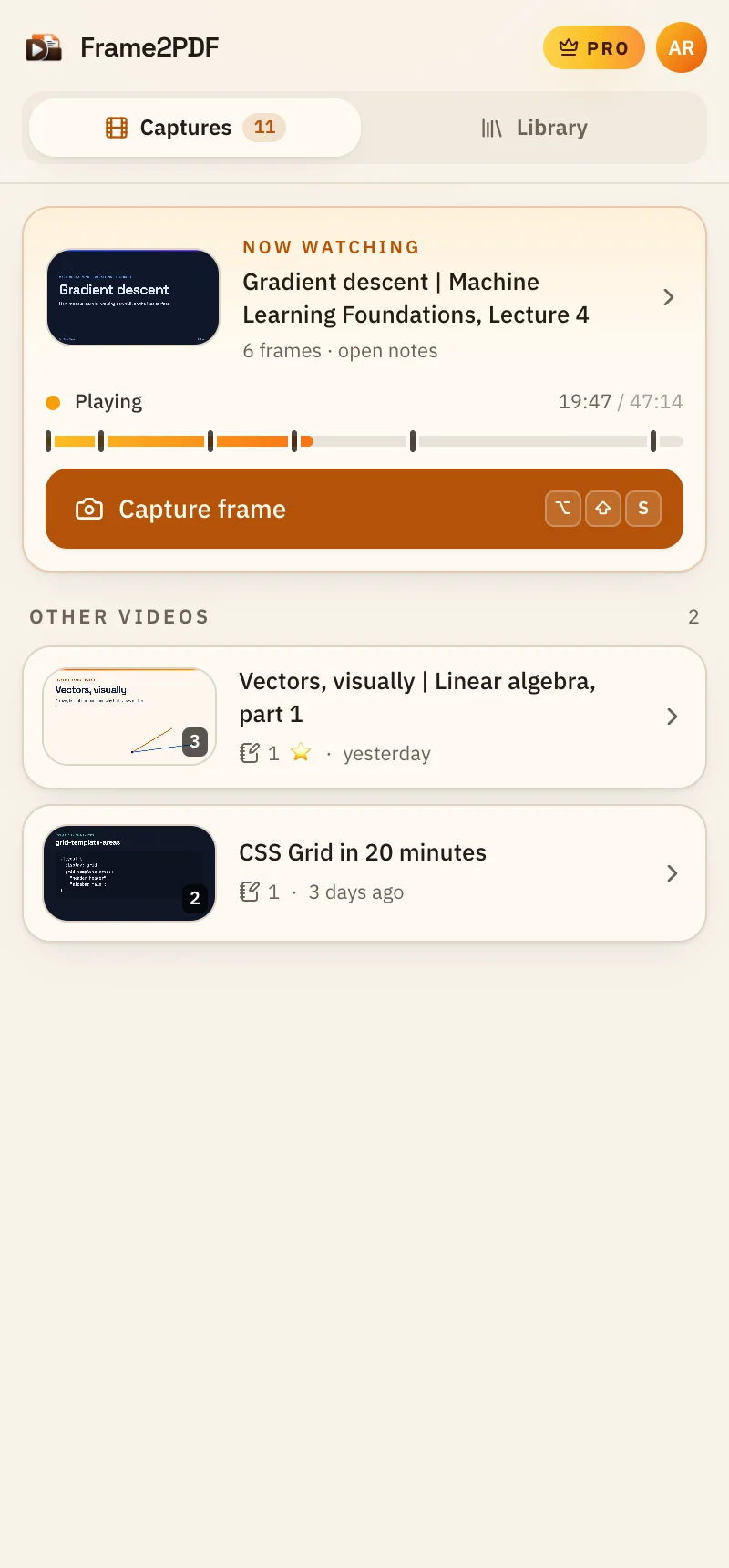
Click the Frame2PDF icon. The side panel opens beside the video and follows whatever you watch.
Grab the frames that matter with one click or Alt+Shift+S, then write a note and pick a label under each.
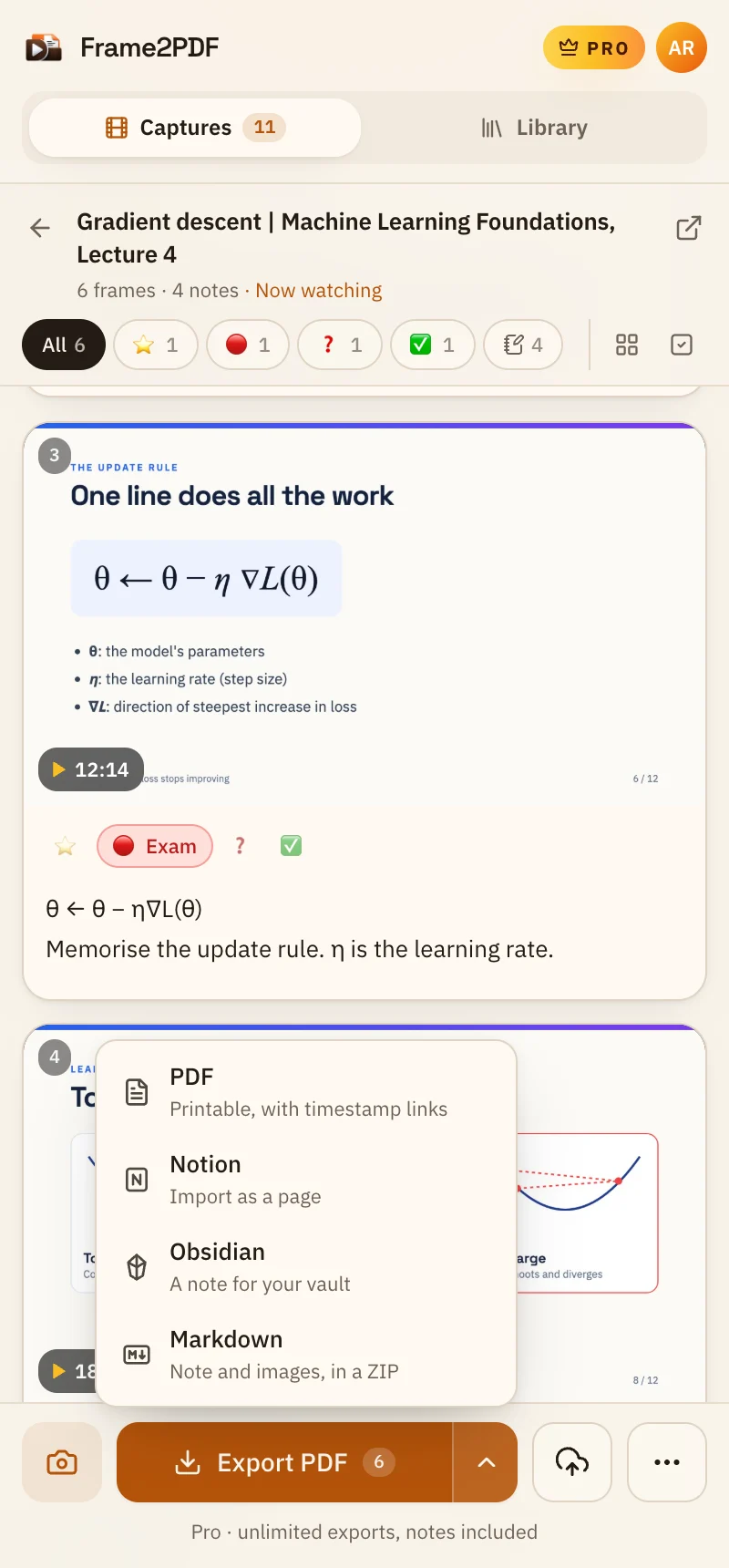
Download a PDF, or send your frames and notes to Notion, Obsidian or any Markdown app.
Export
Print a PDF with your notes under every frame, or send frames, notes and timestamp links to Notion, Obsidian or any Markdown app.
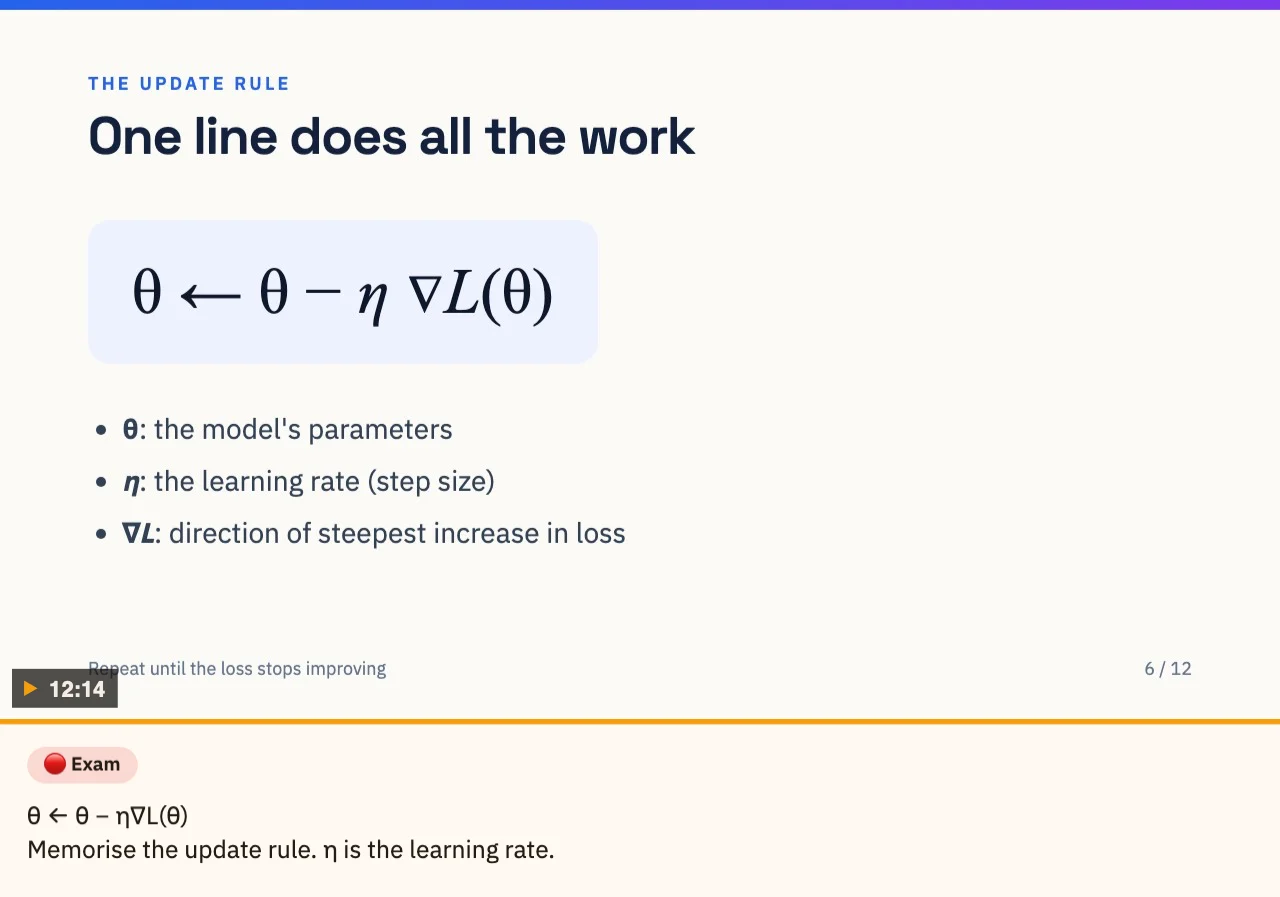
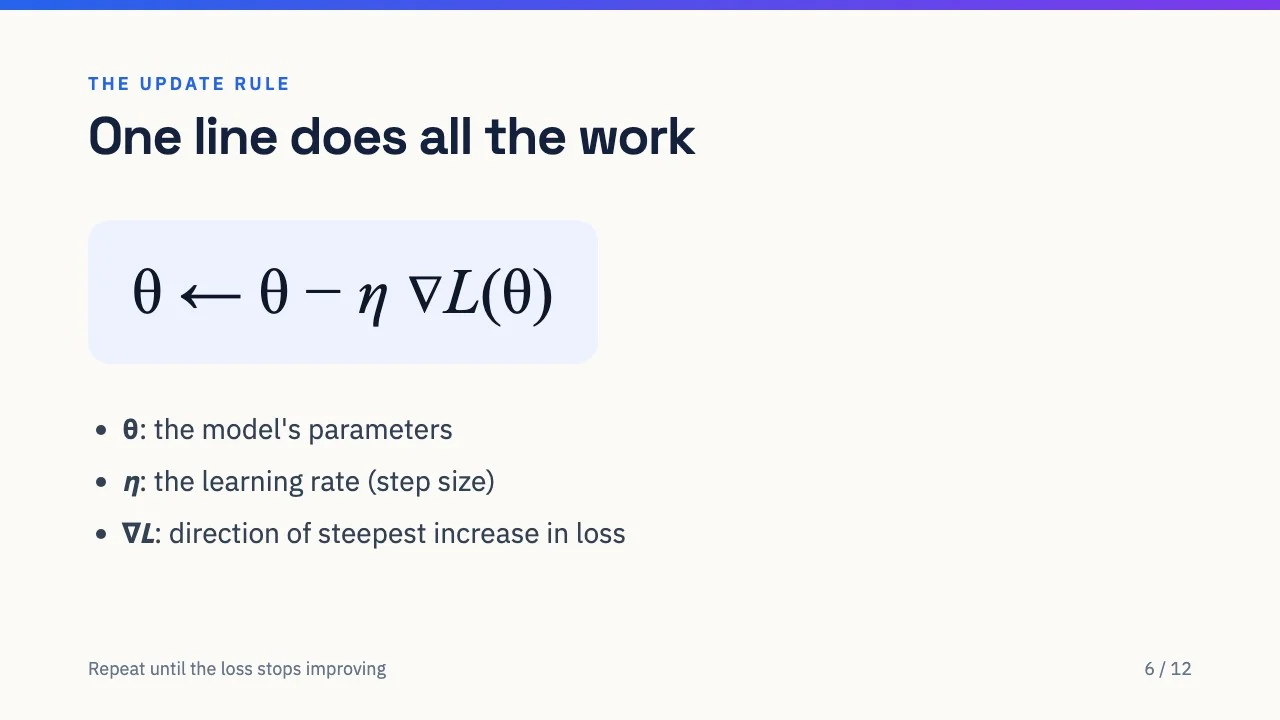
# Gradient descent | Lecture 4[Watch on YouTube](…) · 6 frames · 4 notes ## [12:14](…&t=734s) 🔴 Examθ ← θ − η∇L(θ)Memorise the update rule. η is the learning rate.#exam ## [18:25](…&t=1105s) ❓ Revisit
One page per frame, your note and label underneath, timestamps linked to YouTube.
Notion
A ZIP that imports as one page, with images, notes and timestamp links.
Obsidian
A note with its images in one folder, plus properties and tags for your labels.
Markdown
A portable .md file and images that open in any Markdown app.
Who it's for
Lectures, tutorials, talks and trainings: if it's on YouTube and worth remembering, it belongs in your notes.
Students
Capture every slide, mark what's on the exam, and export a study pack you can print or keep in Notion.
Developers
Save the frames with code and diagrams, note why each step matters, and jump back to the explanation.
Researchers
Collect charts and claims from conference talks with their exact timestamps, ready for your Obsidian vault.
Teams and teachers
Turn a training session or demo into a clean, timestamped PDF anyone can follow.
Pricing
Capturing and notes are free with no limit. Pro removes the export limits and adds a private cloud library for every lecture.
Free
forever
Everything you need to take notes from YouTube.
Pro
per month
For people who learn from video every week.
A Chrome extension for taking notes from YouTube. It captures the frames you choose, lets you write a note and label under each one in a side panel next to the video, and exports them to PDF, Notion, Obsidian or Markdown with a link back to every moment.
Yes. Capturing, notes and labels are free with no limit, and the free plan includes 5 exports a month and PDFs of up to 10 pages. Pro removes the limits and the watermark and adds a private cloud library.
Click the Capture button in the side panel, click the camera icon in YouTube's player, or press Alt+Shift+S on any YouTube tab. You can change the shortcut at chrome://extensions/shortcuts, and Ctrl+S works too unless you turn it off.
Yes. Choose Notion or Obsidian from the export menu and you get a ZIP with a Markdown note and its images. In Notion, use Import, then Text & Markdown. For Obsidian, unzip it into your vault; labels become tags and the video link a property.
Yes. It works on regular videos, live replays and Shorts. Long lectures are fine: capture as many frames as you like, then export them all or pick the ones you need.
In your browser, on your device. Nothing is uploaded until you export or, on Pro, save a PDF to your cloud library, which stays private unless you create a share link.
Not to capture or take notes. A free account is needed to export, so your monthly export allowance can follow you across devices.
Google Chrome on desktop. Other Chromium browsers that install extensions from the Chrome Web Store and support side panels, such as Microsoft Edge and Brave, generally work too.
Install Frame2PDF, open any YouTube video, and capture the first frame you want to remember.