How to Turn YouTube Videos Into Notion Notes (With Screenshots and Timestamps)
A practical workflow for getting the slides, diagrams and your own notes from a YouTube video into one Notion page, with every screenshot linked back to its moment.
Notion is a good home for what you learn from video. It is not a good place to capture it. Embedding the video gives you the whole hour again, not the three minutes that mattered. Pasting screenshots by hand means pausing, cropping, dragging and typing a timestamp under every image, and after the fifth slide most people stop.
The fix is to split the job in two: capture and annotate while you watch, then send the finished set to Notion in one go. This guide shows how, and what to do with the page once it is there.
What you end up with
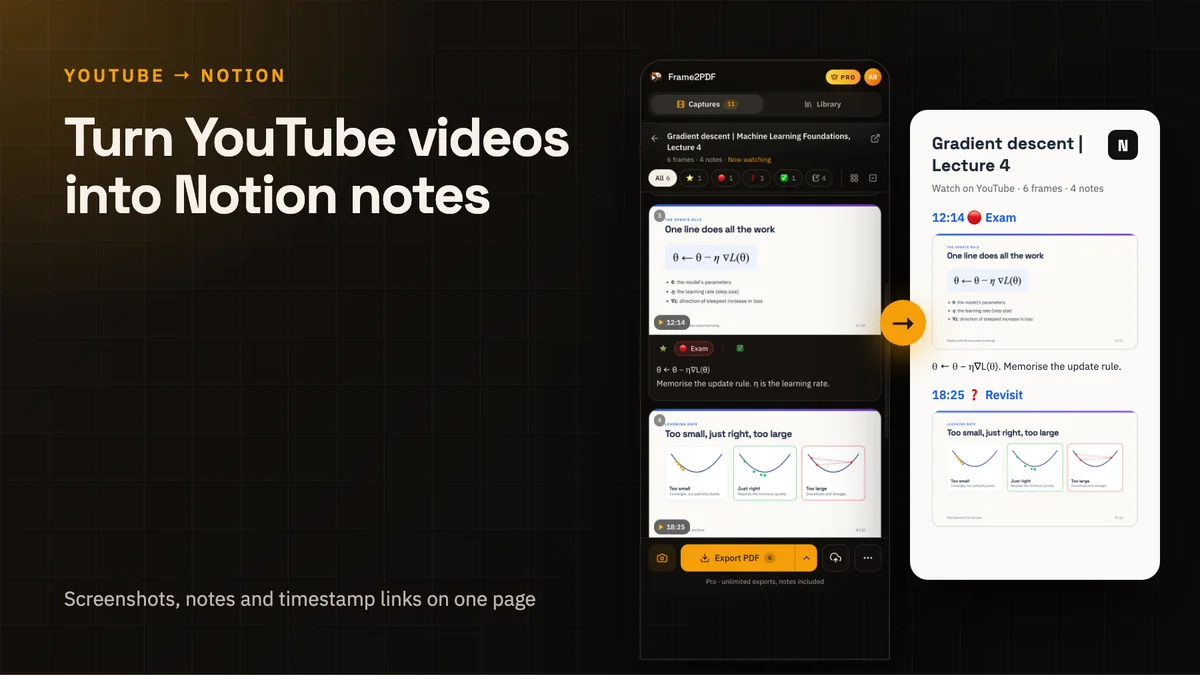
One Notion page per video:
- The video title as the page title, with a link to the video at the top.
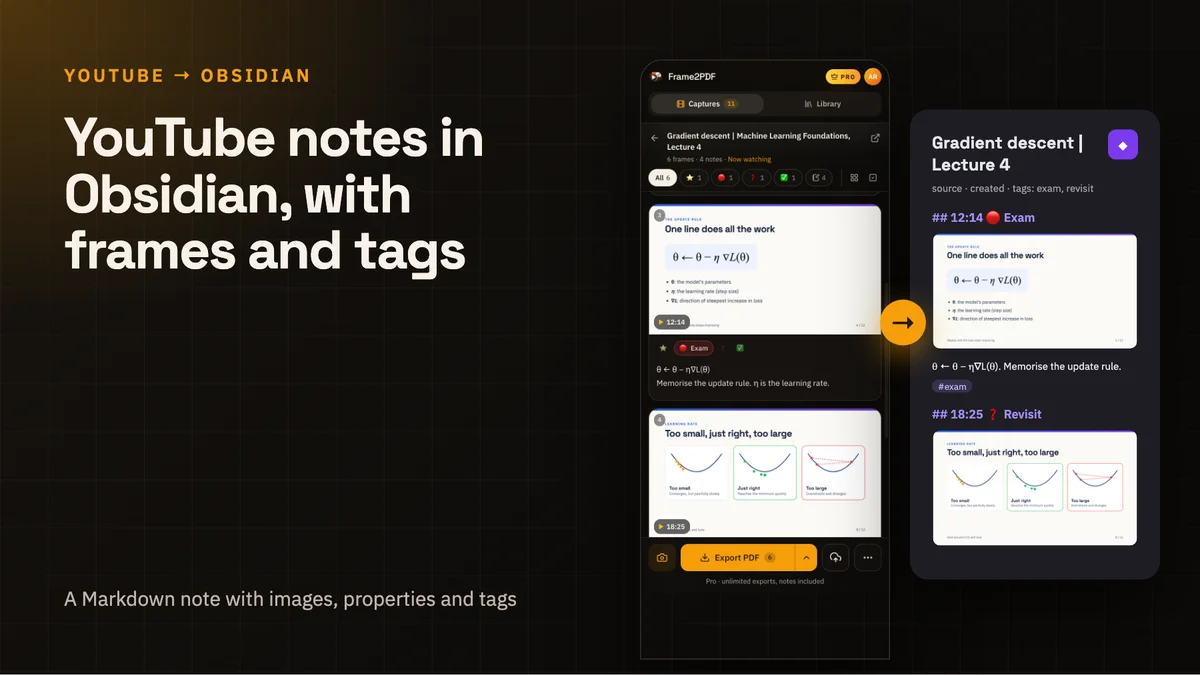
- A section for every frame you kept, headed by its timestamp. Each heading links to that exact moment on YouTube.
- The screenshot itself, at the video's resolution.
- Your note and label (Important, Exam, Revisit or Understood) under each screenshot.
Because each heading is a link to a moment, the page works as an index into the video. Read the notes; when one is unclear, click its timestamp and hear the explanation again.
Step 1: capture while you watch
Install Frame2PDF from the Chrome Web Store and open a YouTube video. Click the Frame2PDF icon in the toolbar and a side panel opens next to the video. It follows whatever you are watching, so you only open it once.
At each moment worth keeping, capture the frame:
- press Alt + Shift + S (you can change it at
chrome://extensions/shortcuts), - click the camera button in YouTube's player controls, or
- press Capture in the side panel.
The video keeps playing. The frame appears in the panel straight away, at the stream's native resolution, so set YouTube's quality to 1080p first if slides have small text.
Step 2: write the note under the frame
Under each frame there is a note field and four labels. This is the part that makes the Notion page worth reading later, so do it while the context is fresh:
- Important for definitions and key ideas.
- Exam for anything the lecturer says will be assessed.
- Revisit for parts you did not understand yet.
- Understood once a hard part finally clicks.
Keep notes short: the one sentence the speaker said that the slide does not. Notes save as you type.
Step 3: export for Notion
When the video is done, open the export menu (the arrow beside Export PDF) and choose Notion. You get a ZIP containing a Markdown note and a folder of images. If you filtered the panel to a label, or selected some frames, only those are exported.
Step 4: import it into Notion
In Notion, open Import (in the sidebar, or under Settings), choose Text & Markdown, and select the ZIP you just downloaded. Notion creates a new page with your headings, images, notes and links in place. Import the whole ZIP rather than the .md file on its own, so the images come with it.
Move the page wherever it belongs, for example into a course page or a "Lectures" database.
Organising lecture pages in Notion
A few patterns that scale beyond the first video:
A database of videos. Create a database with properties for course, date watched and status. Move each imported page into it. You now have a filterable list of everything you have watched, each entry holding its own frames and notes.
One page per lecture, not per course. Pages with ten to twenty frames stay quick to scan. A single page with two hundred screenshots is an archive nobody opens.
Use the labels before exams. Notion search finds "Exam" across every imported page, which pulls up exactly the slides you marked as assessable.
Add a summary at the top. After importing, write three lines above the first frame: what the video was about, what you need to remember, and what to look up. Future you will read that first.
Common questions
Do the screenshots stay in Notion if I delete the ZIP?
Yes. Notion uploads the images during import, so the page no longer depends on the files on your computer.
Do the timestamp links work in Notion?
Yes. Each frame's heading links to the video at that second, and the link at the top opens the video from the start.
Can I send notes to Notion without a Notion account connection?
Yes, that is how this works. Frame2PDF never asks for access to your Notion workspace. You download a file and import it yourself, so nothing is shared until you choose to.
Does exporting to Notion cost anything?
It counts as one of the free plan's five exports a month, the same as a PDF. Pro has unlimited exports.
Can I still get a PDF of the same frames?
Yes. Export the PDF as well, from the same frames. The PDF prints each note and label under its frame, which is handy for printing or annotating on a tablet.
The short version
Capture frames and write a line under each one while the video plays, export for Notion, then import the ZIP with Import → Text & Markdown. You get one page per video with every screenshot, note and timestamp link, without a single manual screenshot.
Related: taking YouTube notes in Obsidian, and how to get the slides from a YouTube lecture.