How to Take YouTube Notes in Obsidian, With Frames, Timestamps and Tags
Get screenshots, your notes and links to every moment from a YouTube video into your Obsidian vault as a proper note, with properties and tags you can query.
Obsidian is built for notes you keep for years: plain Markdown files, local, linked. YouTube videos are where a lot of that knowledge starts, and getting from one to the other is usually clumsy. Screenshots end up in a downloads folder, timestamps get typed by hand, and the note rarely gets written at all.
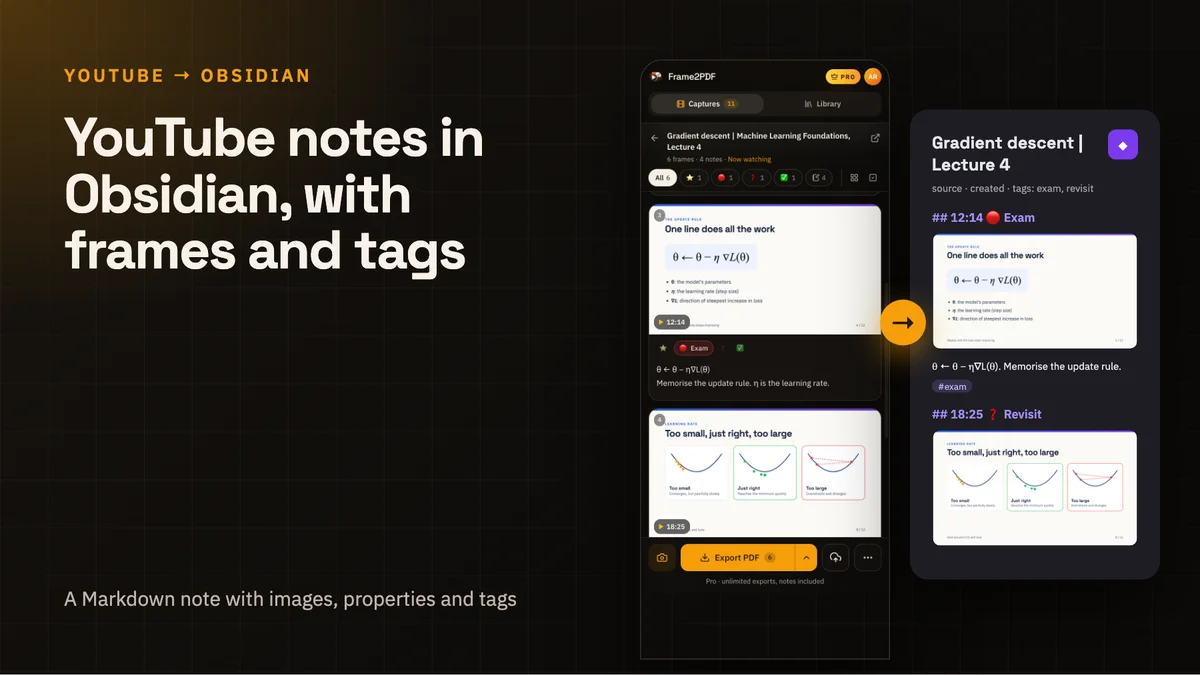
This guide sets up a workflow that produces a real Obsidian note for each video: a Markdown file with the frames you chose, your notes under them, links back to every moment, and properties and tags that fit the rest of your vault.
What lands in your vault
Each export is one folder:
Gradient descent Lecture 4/
  Gradient descent Lecture 4.md
  images/
    01-00m14s.jpg
    02-04m08s.jpg
    03-12m14s.jpg
The note starts with properties:
---
title: "Gradient descent | Lecture 4"
source: https://www.youtube.com/watch?v=…
created: 2026-10-12
tags:
  - frame2pdf
  - youtube
  - exam
---
Then a section per frame. The heading is the timestamp, linked to that second of the video, followed by the image, your note, and the label as a tag:
## [12:14](https://www.youtube.com/watch?v=…&t=734s) 🔴 Exam

θ ← θ − η∇L(θ). Memorise the update rule.
#exam
Everything is standard Markdown with relative image paths, so the note renders anywhere and survives if you ever leave Obsidian.
Step 1: capture and annotate while you watch
Install Frame2PDF and open a YouTube video. Click the Frame2PDF icon to open the side panel beside the video; it follows whatever you watch.
Capture frames with Alt + Shift + S, the camera button in YouTube's player, or Capture in the panel. Each frame appears in the panel with a note field and four labels: Important, Exam, Revisit and Understood. Write the sentence that the slide does not say, and pick a label if one fits. The labels become tags in Obsidian.
Step 2: export for Obsidian
Open the export menu (the arrow beside Export PDF) and choose Obsidian. You get a ZIP with the folder shown above.
Step 3: unzip into your vault
Unzip the folder into your vault, for example into Sources/YouTube/. Obsidian picks it up immediately: the note renders with its images, the properties show at the top, and the tags appear in the tag pane.
If you prefer all attachments in one place, move the images into your attachments folder; Obsidian updates the links when you move files inside the vault with "Automatically update internal links" turned on.
Making the notes work for you
Link the video into your knowledge. Add links from the video note to the concept notes it touches, like [[Gradient descent]] or [[Learning rate]]. The video becomes a source the concept note can point back to, with exact timestamps.
Query by label with Dataview. If you use the Dataview plugin, a list of every video note you have exported is one block:
```dataview
TABLE source, created
FROM #frame2pdf
SORT created DESC
```
Swap #frame2pdf for #exam to list every video with slides you marked for an exam.
Review what you flagged. Search for #revisit before a study session to find every frame you did not understand the first time, then click its timestamp to rewatch just that part.
Common questions
Does Frame2PDF need access to my vault?
No. It never connects to Obsidian. You download a ZIP and unzip it yourself, so your vault stays entirely local.
Will the images work on Obsidian mobile and in sync?
Yes. They are ordinary image files in the vault with relative links, so they sync and render like any other attachment.
Can I use Wikilinks instead of Markdown links?
The export uses standard Markdown links so it works everywhere. Obsidian reads them fine either way, and if you convert them with a plugin or by hand, nothing else depends on the format.
Does an Obsidian export count against the free plan?
It counts as one of the free plan's five exports a month, the same as a PDF. Pro has unlimited exports.
What about Logseq or other Markdown apps?
Choose Markdown in the export menu for the same note without Obsidian-specific properties and tags. Any app that opens Markdown with relative images can use it.
The short version
Capture frames and write a line under each while the video plays, export for Obsidian, and unzip the folder into your vault. Each video becomes a Markdown note with images, timestamp links, properties and tags, ready to link into everything else you know.
Related: turning YouTube videos into Notion notes, and how to screenshot a YouTube video without losing quality.